


Employee Screenshot Monitoring Software

Anexet takes automatic periodic screenshots of employee workstations on Windows, Linux, and macOS, stores them on your on-premise server, and makes them browsable as a chronological image timeline in the Client Console. Automatic screenshots are included from the Standard plan. Blocking third-party screen-capture tools requires Advanced. Anexet is deployed on-premise; the vendor has no access to your data.

Schedule a Demo
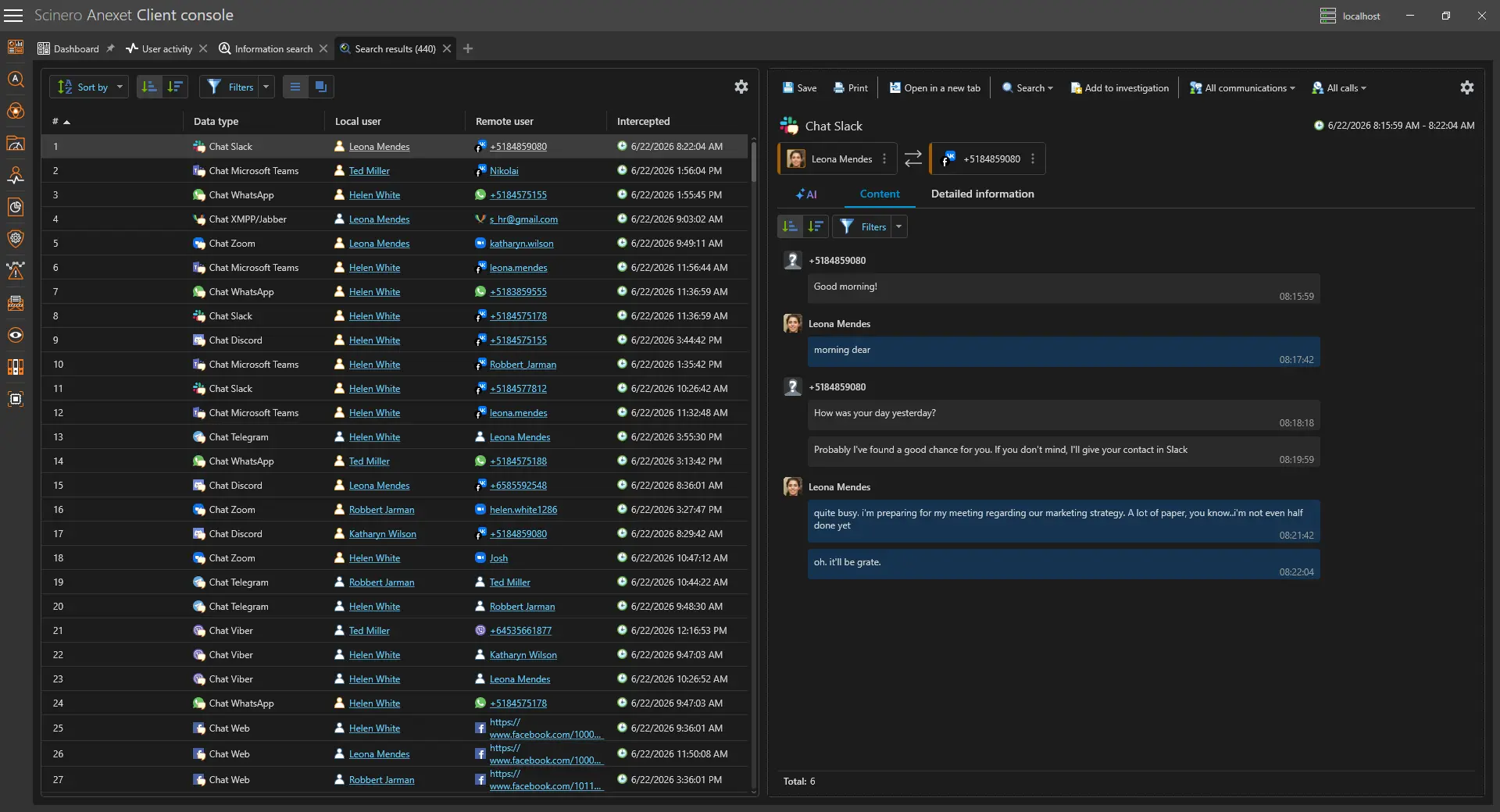
Anexet Client Console showing employee screenshot monitoring timeline

The Evidence Layer That Shows What Was on Screen

Network logs tell you what left the machine — screenshot monitoring tells you exactly what was displayed when it happened.

Network traffic intercept and file-transfer logs tell you what left the machine. They do not tell you what was displayed at the time — which documents were open, which browser tabs were visible, or what the employee was looking at before an event occurred. Automatic periodic screenshots fill that gap with direct visual evidence, timestamped and tied to the active process and user account at the moment of capture.

For IT security teams, a screenshot timeline turns an abstract event log into a reconstructable session. For HR and compliance, it provides objective visual records of workstation activity that support incident investigations, productivity assessments, and internal disputes — without relying on self-reporting.

Screenshot data lives inside the Anexet Client Console alongside intercepted communications, file-transfer logs, and application activity. Security analysts can browse the timeline, correlate frames with other events, and include screenshots in investigation cases — all within the same platform.

Why it matters

  • Visual evidence at every moment

    Each screenshot is tied to the active process, user, and timestamp — turning discrete captures into a reconstructable session history.

  • Chronological timeline

    Screenshots are browsable in the Client Console as an image timeline, filterable by user, date range, and application — directly linked to the activity log.

  • Fully on-premise

    All screenshots stay on your own server. The vendor has no access to your data, satisfying strict data-sovereignty and insider-threat requirements.

What Anexet Captures

All capabilities below are verified against the plan matrix. Automatic screenshots start with the Standard plan; screenshot blocking of third-party tools requires Advanced.

Automatic periodic screenshots

  • Configurable-interval screenshot capture

    Standard

    The endpoint agent takes full-screen captures at a configurable interval set per agent profile in the Administrator Console. Screenshots can also be triggered by policy events when a specific application or process is detected in focus.

  • Full-screen capture with process context

    Standard

    Each capture covers the full workstation display. The active process name, window title, user account, and timestamp are attached to every frame at the moment of capture.

Chronological image timeline

  • Browsable timeline in the Client Console

    Standard

    All captured screenshots are displayed in the Client Console as a browsable image timeline ordered by capture time, filterable by user, date range, or active application.

  • On-premise storage and indexing

    Standard

    Screenshots are stored on your organisation's own Anexet server, indexed against the user activity timeline. No screenshot data is uploaded to the vendor or any external service.

Screenshot blocking

  • Block third-party screen-capture tools

    Advanced

    Blocking Policies can prevent third-party screen-capture applications from running on monitored workstations — stopping employees from capturing sensitive content with tools outside the Anexet console and exfiltrating it as an image file.

Coverage is for Windows, Linux, and macOS (including ARM64) workstations. No mobile agents are included. Continuous desktop video recording is a separate feature — see Screen Recording.

On-Premise Screenshot Storage — Your Images Never Leave Your Infrastructure

The Anexet endpoint agent runs silently on Windows, Linux, and macOS workstations — including Apple Silicon (ARM64). It captures full-screen snapshots at the configured interval or on a policy trigger, attaching process, user, and timestamp metadata to each frame. All captured screenshots are sent over the internal network to the Anexet Data Processing Server on your own infrastructure and indexed against the user activity timeline.

Anexet is deployed entirely on-premise. All screenshots remain on your server. Scinero Software Limited, the vendor, has no access to your systems or any captured image data — making screenshot monitoring viable even under strict data-sovereignty or insider-threat policies.

Anexet Client Console showing screenshot monitoring timeline
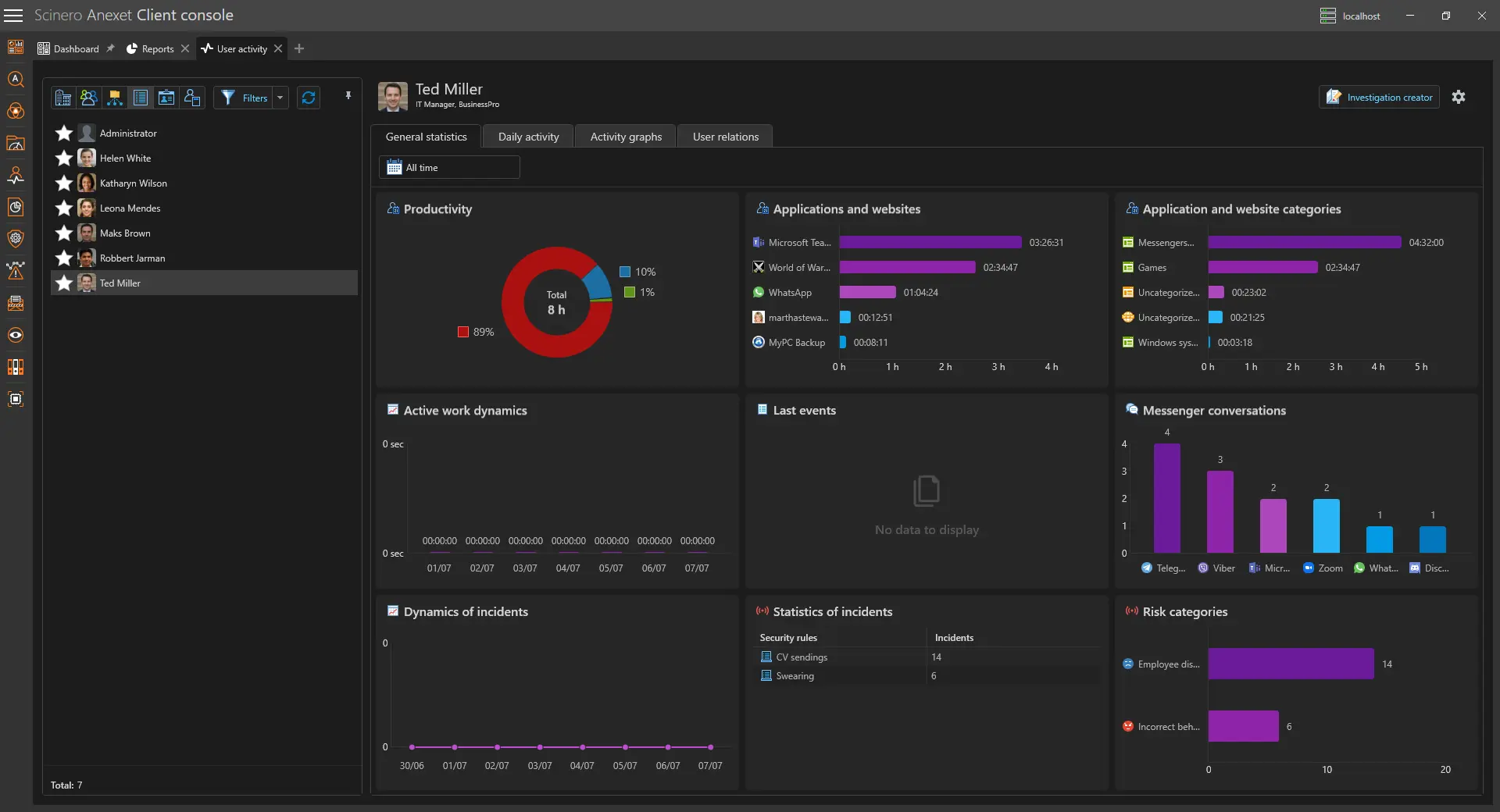
User activity view with screenshots linked to application log

How Employee Screenshot Monitoring Works

Four steps from endpoint capture to a searchable, evidence-ready image timeline.

A lightweight Anexet agent deployed to Windows, Linux, or macOS captures full-screen snapshots at the configured interval or on a policy trigger — silently, with the active process, user, and timestamp attached to each frame.

1

Each captured screenshot is sent over the internal network to the Anexet Data Processing Server on your own infrastructure; nothing is uploaded to the vendor or any external service.

2

Screenshots are indexed on your server and become browsable in the Client Console as a chronological image timeline, filterable by user, date range, and active application.

3

Frames of interest can be flagged, added to an investigation case, and combined with other evidence — intercepted messages, file-transfer records, and keystroke logs if Advanced — then included in preset or custom reports.

4

A lightweight Anexet agent deployed to Windows, Linux, or macOS captures full-screen snapshots at the configured interval or on a policy trigger — silently, with the active process, user, and timestamp attached to each frame.

1

Each captured screenshot is sent over the internal network to the Anexet Data Processing Server on your own infrastructure; nothing is uploaded to the vendor or any external service.

2

Screenshots are indexed on your server and become browsable in the Client Console as a chronological image timeline, filterable by user, date range, and active application.

3

Frames of interest can be flagged, added to an investigation case, and combined with other evidence — intercepted messages, file-transfer records, and keystroke logs if Advanced — then included in preset or custom reports.

4

Arrow

Screenshot Monitoring by Plan

StandardCore employee activity monitoring.
Network traffic interception
USB control
Printers monitoring
Messengers interception
Browsers interception
and 4 more
Includes:
Anexet Activity
Most popular
AdvancedAdds DLP and deeper visibility.
Standard plan included
DLP features
Network shares monitoring
Keylogger
Webcam pictures
and 4 more
Includes:
Anexet DLP
Anexet Activity
All-in-one
PremiumAll-in-one solution.
Standard + Advanced plans included
Advanced search (digital fingerprints, hash search)
File systems monitoring
User relations analysis
Risk analysis
and 6 more
Includes:
Anexet DLP
Anexet Inventory
Anexet Activity
Anexet Ultimate

Frequently Asked Questions

Common questions about automatic screenshot monitoring in Anexet.

What is employee screenshot monitoring, and is it legal?

Employee screenshot monitoring is an automated security control that periodically captures full-screen images of company workstations, stores them on an on-premise server, and makes them reviewable by authorised IT security or HR personnel. Legality depends on jurisdiction and employee notification practice; most markets permit it on company-owned equipment when employees are informed via an acceptable-use policy. Anexet is deployed on-premise; the vendor has no access to your data. Your organisation retains full control over what is captured, who can view screenshots, and how long they are retained.

Automatic periodic screenshots are included from the Standard plan. Blocking third-party screen-capture tools (a DLP control) requires the Advanced plan. See the plans section above or request a comparison of all plans.

Anexet is deployed on-premise; the vendor has no access to your data. All captured screenshots are stored on your organisation's own servers, inside your network perimeter. Scinero Software Limited, the vendor, has no connectivity to your installation.

Yes. The screenshot interval is configurable per agent profile in the Administrator Console. You can set a fixed periodic interval or configure policy-triggered captures that take a screenshot when a specific application or event is detected. The exact interval range is confirmed during the demo and setup phase.

Screenshots are presented in the Anexet Client Console as a chronological image timeline. Each frame is tagged with the active process name, window title, user account, and timestamp. You can filter the timeline by user, date range, or application and click any frame to view it at full resolution. From Advanced, the Activity dashboard provides a consolidated per-employee view.

Screenshot monitoring captures still images at a configured interval or on a trigger — a lightweight, storage-efficient way to see what was displayed at discrete points in time. Screen recording captures continuous desktop video. Both features are available in Anexet; screen recording starts with the Standard plan and is described on the Screen Recording page.

Yes. From the Advanced plan, Blocking Policies can prevent third-party screen-capture applications from running on the workstation. This stops employees from using tools outside the Anexet console to capture sensitive content and exfiltrate it as an image file.

The endpoint agent supports Windows, Linux, and macOS (including Apple Silicon ARM64). There are no mobile agents — screenshot monitoring covers desktop and laptop workstations only.

Three professionals collaborating and looking at a tablet in a meeting

See Screenshot Monitoring in Action

Tell us about your monitoring requirements — office, remote, or hybrid. We'll show you how automatic screenshot capture fits into your plan and arrange a demo or a free trial of Anexet Ultimate.

I accept that my personal data can be processed in accordance with the Privacy Policy